Remote
PeakHour Remote lets you view your monitors from a web browser on another device — handy for checking usage and performance from your phone, tablet, or another computer.
Enable it here, then open the Address shown in the settings from any device on your network.
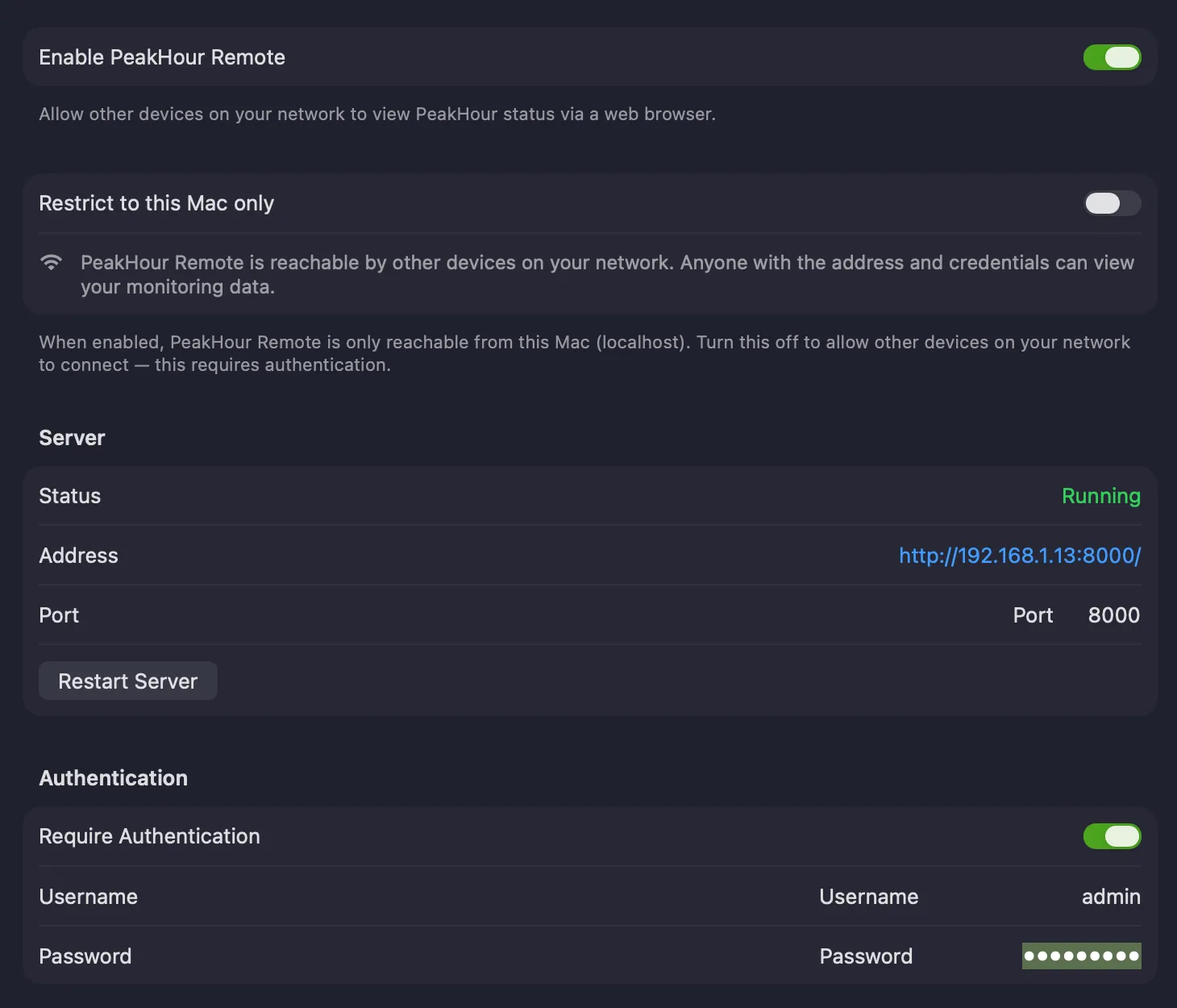
Enable PeakHour Remote — starts the PeakHour Remote web server so you can view PeakHour’s status in a browser.
Restrict to this Mac only — when on, PeakHour Remote is reachable only from this Mac (localhost). Turn it off to let other devices on your network connect.
Server
Section titled “Server”| Field | Description |
|---|---|
| Status | Whether the server is Running. If it can’t start — for example, the port is already in use — the error is shown here. |
| Address | The URL for opening PeakHour Remote in a browser (e.g. http://192.168.1.13:8000/). Open it from any device on your network. |
| Port | The port the server listens on (default 8000). If another app is using it, change to a free port and restart the server. |
| Restart Server | Restarts the PeakHour Remote server — use this after changing the port. |
Authentication
Section titled “Authentication”| Field | Description |
|---|---|
| Require Authentication | When enabled, viewers must enter the username and password below to access PeakHour Remote. |
| Username | The username required when authentication is enabled. |
| Password | The password required when authentication is enabled. |
Using PeakHour Remote
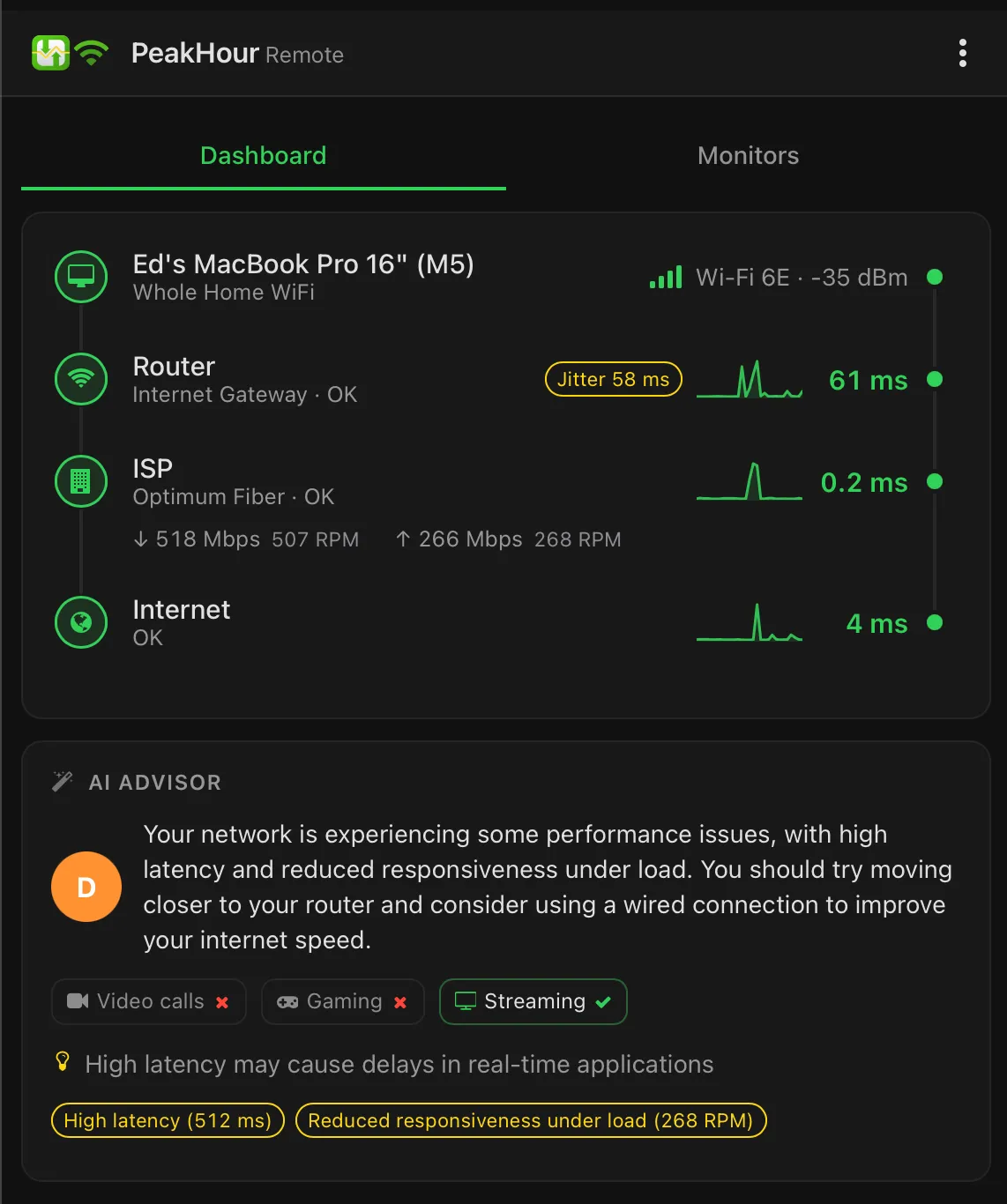
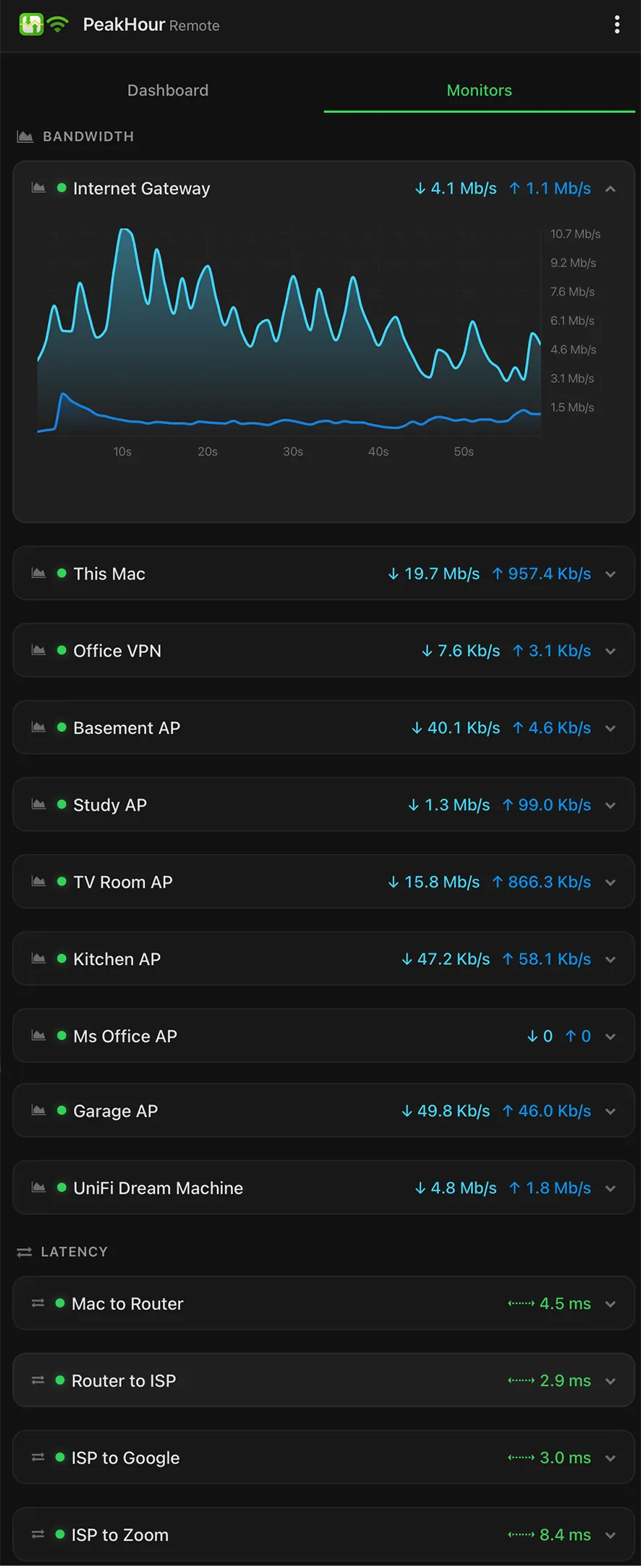
Section titled “Using PeakHour Remote”PeakHour Remote is a web app that works in most modern browsers. Its layout is responsive, sizing itself from a phone up to a desktop. Open the Address from the settings and PeakHour Remote appears with two tabs — Dashboard and Monitors.
Dashboard
Section titled “Dashboard”The Dashboard tab mirrors PeakHour’s Internet Dashboard: the path from your Mac, through your router and ISP, out to the internet, with each hop’s status and key measurements. When the AI Advisor is enabled, its assessment of your connection appears below.
Monitors
Section titled “Monitors”The Monitors tab lists your monitors grouped by type — Bandwidth and Latency. Each shows a summary of its current readings; tap one to expand its graph.
Add to your Home Screen
Section titled “Add to your Home Screen”A convenient way to use PeakHour Remote is to add it to your phone or tablet’s Home Screen: in PeakHour Remote, tap the … button in the top-right and choose Add to Home Screen. Tapping the new icon launches PeakHour Remote as a full-screen app.
Was this page helpful?
Found something wrong, unclear, or out of date? Let us know and we'll fix it.