iCloud
iCloud Sync keeps your settings in sync across your Macs and backs them up to iCloud. It saves all your configuration — including your monitors and their settings — so that any Mac signed in to the same iCloud account can restore them with a single click.
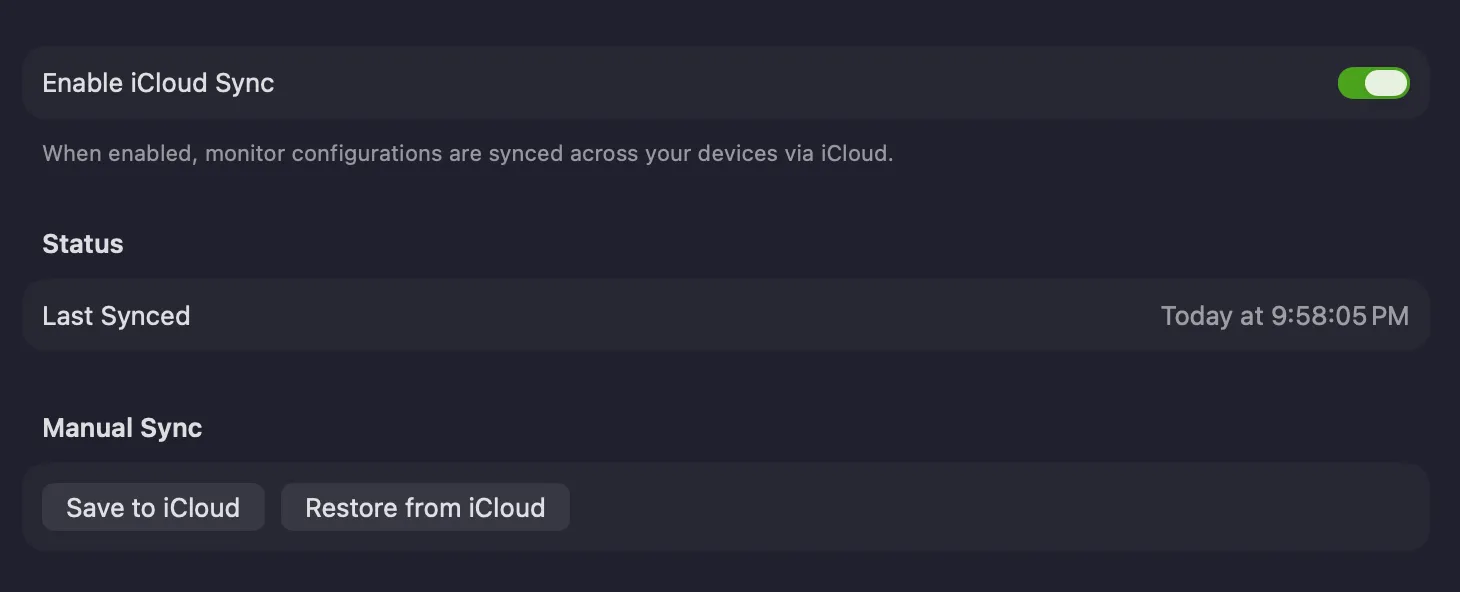
Enable iCloud Sync — when on, PeakHour automatically keeps your monitor configurations and settings stored in iCloud and synced across your devices. When a change is made on another Mac, you’re notified and can choose whether to import it here or overwrite the version in iCloud.
Status
Section titled “Status”Last Synced — when PeakHour last synced your settings with iCloud.
Manual Sync
Section titled “Manual Sync”| Button | Description |
|---|---|
| Save to iCloud | Stores your Mac’s current settings to iCloud. This also happens automatically whenever you change a setting. |
| Restore from iCloud | Overwrites your Mac’s settings with the version currently stored in iCloud. |
Handling settings changes
Section titled “Handling settings changes”With iCloud Sync enabled, PeakHour always saves changes to iCloud automatically. If another Mac that also has iCloud Sync enabled detects new settings, a cloud icon appears in the footer of the PeakHour window:

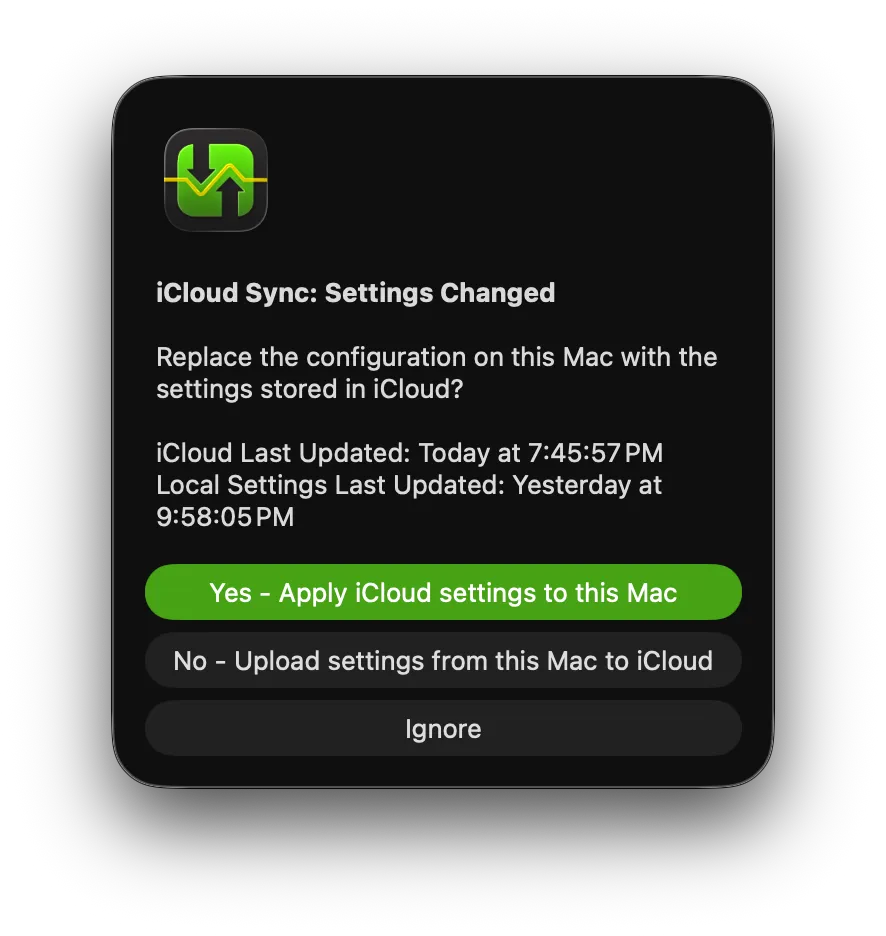
Click it to resolve the difference. PeakHour shows when each version was last updated and lets you choose how to proceed:
| Option | What it does |
|---|---|
| Yes – Apply iCloud settings to this Mac | Replaces this Mac’s configuration with the version stored in iCloud. |
| No – Upload settings from this Mac to iCloud | Keeps this Mac’s settings and overwrites the version in iCloud. |
| Ignore | Dismisses the prompt for now and leaves both versions unchanged. |
Was this page helpful?
Found something wrong, unclear, or out of date? Let us know and we'll fix it.